
Skip to content
  • Home
  • Shop
    • Custom Tab
    • Advanced Reviews
  • Authors
  • About Us
  • News
  • Contact Us

Book Categories:

เครื่องมือ SEO
1 books
จัดการสมาชิกและผู้ใช้งาน
1 books
WordPress Security Plugin
2 books
WordPress Plugins
6 books
WooCommerce Plugins
4 books
Security & Authentication
1 books
Payment Gateway
1 books
Order Management
1 books
Notifications & Automation
1 books
Live Chat
1 books
Explore Creative Home Ideas Inside These Books
Shopping Cart
Your cart is currently empty.

Return to shop

  • News
  • Articles
  • Knowledge Base
  • เครื่องมือฟรี
VarietyPC.net
No results
Login / Register
Wishlist 0
Shopping cart 0
  • Categories
    • เครื่องมือ SEO
      1 books
      จัดการสมาชิกและผู้ใช้งาน
      1 books
      WordPress Security Plugin
      2 books
      WordPress Plugins
      6 books
      WooCommerce Plugins
      4 books
      Security & Authentication
      1 books
      Payment Gateway
      1 books
      Order Management
      1 books
      Notifications & Automation
      1 books
      Live Chat
      1 books
      Explore Creative Home Ideas Inside These Books
  • Home
  • Shop
  • Microsoft
  • SmartPhone
  • WordPress
  • ข่าวเทคโนโลยี
  • สวก.
  • 24/7 Support Center +66 85 870 7205
VarietyPC.net
Login / Register
Shopping cart 0
Auto Login Windows 8 แบบไม่ต้องใส่พาสเวิร์ด
Microsoft, Windows 8

Auto Login Windows 8 แบบไม่ต้องใส่พาสเวิร์ด

varietypc Avatar
varietypc
September 4, 2013

Share:

Share on Facebook Share on X (Twitter) Share on Reddit Share on WhatsApp Share on Flipboard Copy to Clipboard
Auto Login Windows 8 แบบไม่ต้องใส่พาสเวิร์ด

สำหรับการทำ Auto Login Windows 8 ในขั้นตอนสุดท้ายของการติดตั้ง Windows 8 หรือ Windows 8.1 ระบบจะให้เรากำหนด username และ password ก่อนเข้าใช้งาน โดยที่หน้าต่างนี้จริงๆแล้วเราจะใส่หรือไม่ใส่ก็ได้ แต่ถ้าหากเผลอใส่ไปแล้ว ในการล็อกอินเข้าใช้งานทุกๆครั้ง เราก็ต้องใส่พาสเวิร์ดก่อน การใส่พาสเวิร์ดก่อนเข้าใช้งานก็จะเหมาะกับเครื่องที่ต้องการความปลอดภัย ไม่อยากให้บุคคลที่ไม่ได้รับอนุญาตมาเปิดใช้งาน แต่สำหรับบางท่าน หากต้องการทำให้ระบบ Windows 8 สามารถกลับมาล็อกอินได้อัตโนมัติแบบถาวรก็สามารถทำได้ตามขั้นตอนต่อไปนี้ได้เลยครับ

รองรับระบบปฏิบัติการ Windows 8 และ Windows 8.1

โดยก่อนอื่นให้เปิดหน้าต่าง Command Prompt หรือ Windows PowerShell (Admin) (ใช้งานด้วยโหมด Admin) ดังนี้

การเปิด Command Prompt

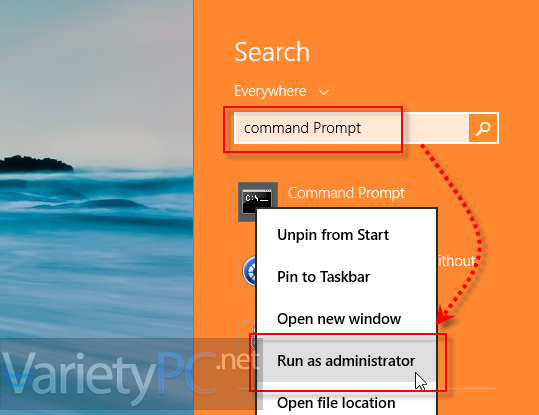
กดปุ่มคีย์ลัด Windows + F เพื่อเปิด search bar ทางด้านมุมขวาของหน้าจอ ที่ภายใต้หัวข้อ Search เปลี่ยนจากสถานะ Files เป็น Everywhere แล้วพิมพ์คีย์เวิร์ดเป็น command prompt พร้อมกับคลิกขวาที่ชอร์ตคัท Command Prompt เปิดด้วยสิทธิ์ Admin
auto-logon-windows-8-01

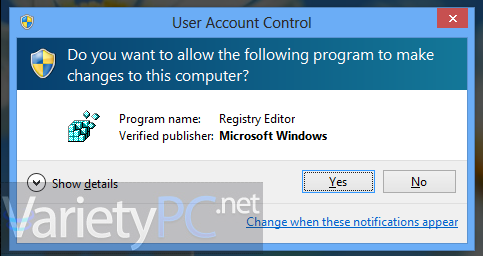
สำหรับบางท่านไม่ได้ปิดการทำงานของระบบป้องกัน UAC เอาไว้ ก็ให้กด Yes
auto-logon-windows-8-02

แล้วพิมพ์คำสั่ง control userpasswords2 -> Enter 1 ครั้ง
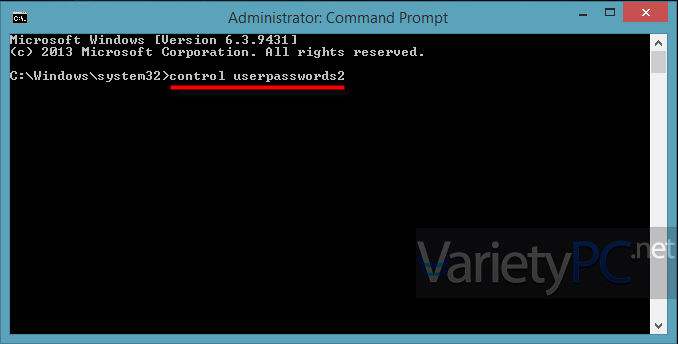
auto-logon-windows-8-03

หรือจะเปิดการใช้งานด้วย Windows PowerShell โดยการกดคีย์ลัด Windows + X ก็ได้
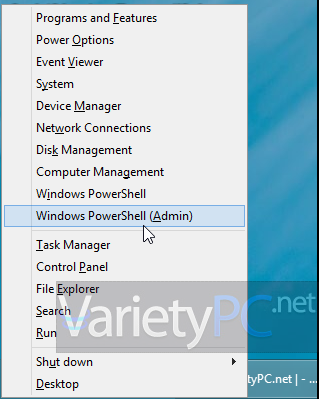
auto-logon-windows-8-04

แล้วพิมพ์คำสั่ง control userpasswords2 -> Enter 1 ครั้ง
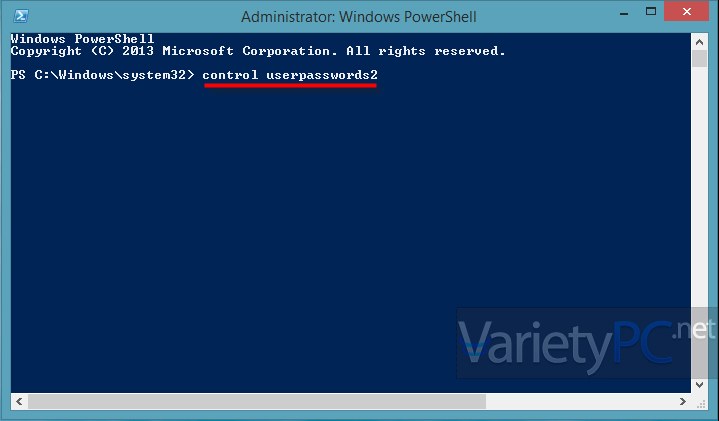
auto-logon-windows-8-05

หน้าต่าง User Accounts จะถูกเปิดขึ้นมา ตรงหัวข้อ Users for this computer ให้คลิกเลือก user ที่ต้องการปลดล็อคพาสเวิร์ด 1 ครั้ง เพื่อให้ Windows 8 ล็อกอินแบบอัตโนมัติ แล้วเอาเครื่องหมายถูกออกหน้าหัวข้อ Users must enter a user name and password to use this computer. แล้วคลิก Apply
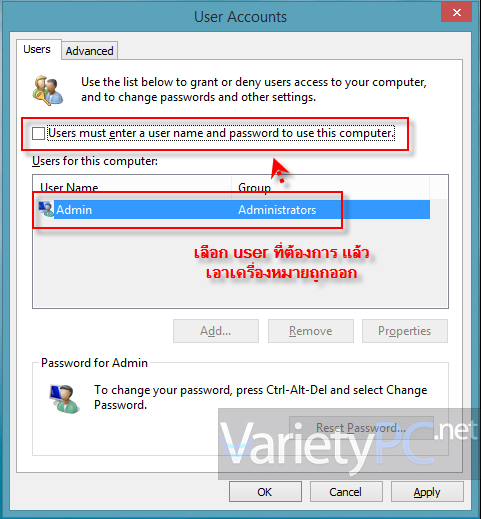
auto-logon-windows-8-06

หน้าต่าง Automatically sign in จะถูกเปิดขึ้นมา ตรงนี้เราก็เพียงใส่พาสเวิร์ดเดิมที่เคยใช้ที่ช่อง Password และ Confirm Password -> กดปุ่ม OK แล้วปิดหน้าต่างทั้งหมดลงได้เลยครับ
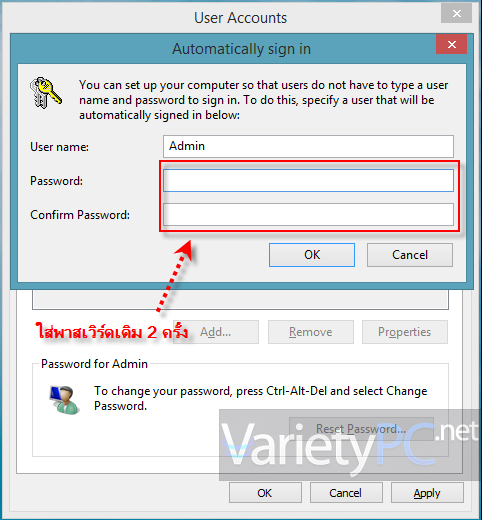
auto-logon-windows-8-07

หรือถ้าขั้นตอนได้บนมันซับซ้อนเกินไป เรามาดูขั้นตอนเรียกใช้งานง่ายๆกันดีกว่า

ก็เพียงแค่กดปุ่ม Ctrl + Alt + Delete แล้วคลิกหัวข้อ Change a password
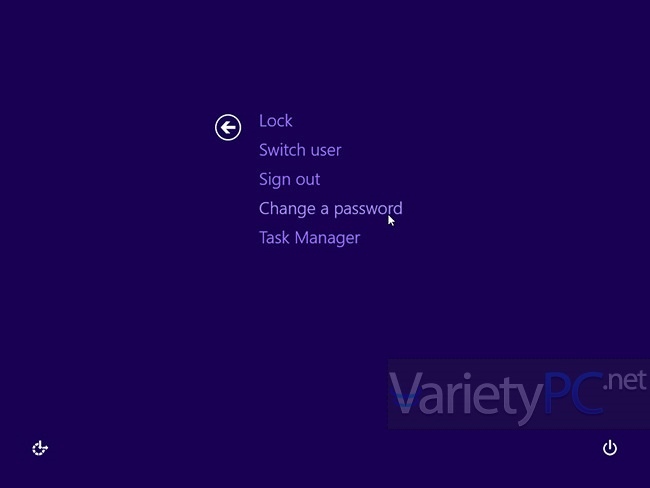
auto-logon-windows-8-08

ที่หัวข้อ Old password ให้ใส่พาสเวิร์ดเดิมตามปกติ แต่ New password และ Confirm password ไม่ต้องใส่อะไร แล้วคลิกปุ่มลูกศร -> หรือกด Enter เพื่อเข้าใช้งานตามปกติได้เลยครับ
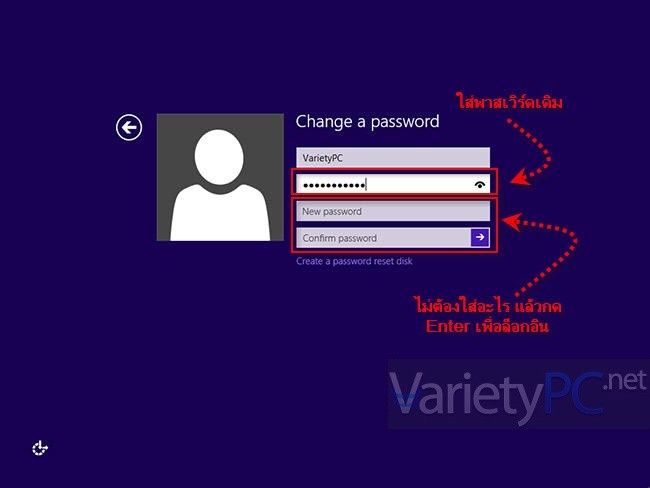
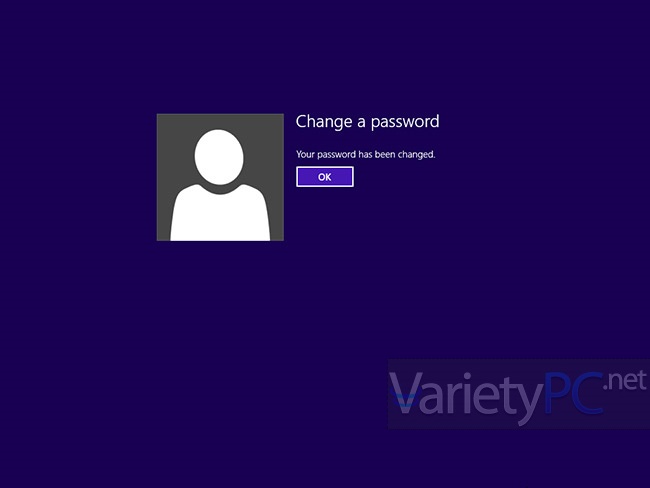
auto-logon-windows-8-09
auto-logon-windows-8-10

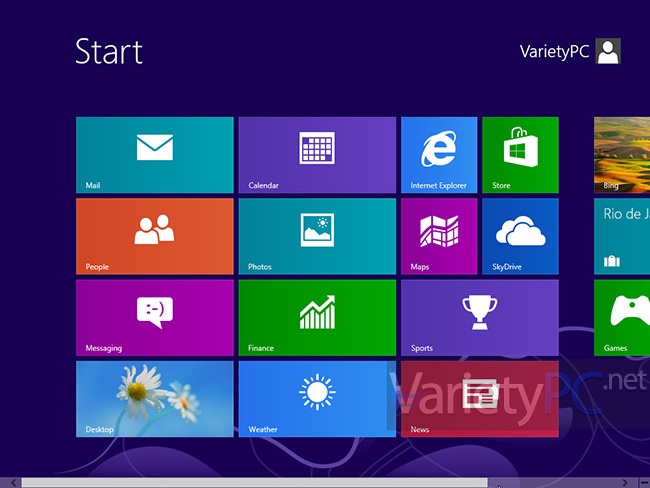
หลังจากกำหนดค่าพาสเวิร์ดให้ล็อกอินอัตโนมัติแล้ว ก็ให้ลองทดสอบรีสตาร์ทเครื่องดูใหม่ จะพบว่าระบบ Auto Login Windows 8 จะล็อกอินได้อัตโนมัติแล้ว สวัสดีครับ
auto-logon-windows-8-11
Tags
# Auto Login# Windows 8
varietypc
varietypc

ส่วนตัวชื่นชอบการเขียน, พัฒนาซอร์สโค้ดเว็บไซต์เป็นชีวิตจิตใจ ตลอดจนถึงอัพเดตเนื้อหาทริค, เทคนิคคอมพิวเตอร์ และข่าวสารเทคโนโลยีทุกอย่าง นอกเหนือจากการเคลียร์งานหลักเสร็จเรียบร้อย ก็จะมาทิ้งชีวิตให้กับ VarietyPC.net กันต่อแทบทุกวัน แต่บางครั้งอาจจะไม่ได้อัพเดตเนื้อหา เพราะต้องพัฒนาระบบการจัดการ Backend หลังบ้านไปด้วยและมีคนทำเพียงคนเดียว แม้จะไม่ได้รับผลตอบแทนจากแหล่งใดๆก็ตาม ตอนนี้เว็บไซต์เล็กๆแห่งนี้ก็ใกล้ย่างเข้าปีที่ 13 แล้วครับ และจะยังคงอยู่แชร์ความรู้กับพี่น้อง เพื่อนๆคนไทย และทั่วโลกตลอดไปครับ

Articles: 1531
3 กันยายน แฮปปี้เบิร์ดเดย์นะ โดราเอมอน
Previous Post 3 กันยายน แฮปปี้เบิร์ดเดย์นะ โดราเอมอน
Next Post เดอะแวลลูซิสเตมส์แนะนำ Buffalo Link Station LS410D Series
เดอะแวลลูซิสเตมส์แนะนำ Buffalo Link Station LS410D Series

9 Comments

  1. เราไม่ชอบชือยาวเลยคิดหาชือสั้น

    เราไม่ชอบชือยาวเลยคิดหาชือสั้น

    April 17, 2016 / 10:49 pm Reply

    ขอบคุนมากคับ ทำได้แล้ว

  2. รัตนา แก้วเพชรพงษ์

    รัตนา แก้วเพชรพงษ์

    November 11, 2015 / 11:41 am Reply

    รบกวนสอบถามค่ะ น้องไปซื้อโน้ตบุค ASUS มาค่ะ แล้วต้องใส่รหัสผ่านทุกครั้งและยาวมาก ซึ่งร้านจดมาให้ จะให้เปิดเข้า window ปกติแบบไม่ต้องใส่รหัสยังไงคะ

    • varietypc

      varietypc

      November 11, 2015 / 1:15 pm Reply

      ลองทำตามขั้นตอนนี้ดูนะครับ https://demo1.misterdezign.com/auto-login-windows-10/

  3. คน แรก

    คน แรก

    August 8, 2015 / 5:53 pm Reply

    https://uploads.disquscdn.com/images/824f11f98641b21f3d341cb24eb05820528bd4c6fe98db4a82c18454fe88bffd.jpg https://uploads.disquscdn.com/images/f1b5b429b4bf5d87d0137e86afd262010d2c87fcf63f2c1e7ff403937810ab16.jpg มันเป็นแบบนี้อ่ะค่ะ ช่วยทีค่ะ

    • varietypc

      varietypc

      August 8, 2015 / 6:38 pm Reply

      ท่านไปแก้ไขผิดชื่อ user หรือเปล่าครับ และเรายังไม่ได้กำหนดให้สิทธิ์ Administrator ทำงาน

    • Thanawat Dennitirat

      Thanawat Dennitirat

      September 21, 2015 / 9:15 pm Reply

      เป็นเหมือนกันครับ มีวิธีแก้มั้ยครับ

      • varietypc

        varietypc

        September 22, 2015 / 1:53 pm Reply

        อาการเป็นยังไงบ้างครับ

  4. ก. ไก่

    August 20, 2014 / 3:51 pm Reply

    thank

  5. ขี้งอน เอาเเต่ใจ

    August 20, 2014 / 3:51 pm Reply

    ดปุ่ม Ctrl + Alt + Delete แ]ล้ว มันไม่มี Change a password ค่ะ ทำยังไง

Leave a ReplyCancel Reply

Your email address will not be published. Required fields are marked *

Subscribe now!

Enter your email address below and subscribe to our newsletter

Best selling books

  • แนะนำ Woo LINE Order Notifier Pro ปลั๊กอินที่ช่วยส่งการแจ้งเตือนคำสั่งซื้อ WooCommerce เข้า LINE อัตโนมัติ
    Woo LINE Order Notifier Pro
    Notifications & Automation, WooCommerce Plugins
    ฿990.00
  • WPStore+ Malware File Change Monitor | ปลั๊กอินตรวจสอบไฟล์ WordPress
    WPStore+ Malware File Change Monitor
    WordPress Plugins, WordPress Security Plugin
    ฿1,390.00 Original price was: ฿1,390.00.฿990.00Current price is: ฿990.00.
  • WPStore+ Live Chat Desk Pro ปลั๊กอินแชทสด WordPress สำหรับเว็บไซต์
    WPStore+ Live Chat Desk Pro ปลั๊กอินแชทสดสำหรับเว็บไซต์
    Live Chat, WordPress Plugins
    ฿1,290.00
  • ปลั๊กอิน AI เขียนรายละเอียดสินค้า WooCommerce ช่วยสร้างและปรับปรุงเนื้อหาสินค้าภายใน WordPress เหมาะสำหรับเจ้าของร้านออนไลน์ ผู้ดูแลเว็บไซต์ และผู้ทำ SEO
    WPStore+ AI Product Writer for WooCommerce
    AI Tools, WooCommerce Plugins
    ฿1,290.00 Original price was: ฿1,290.00.฿990.00Current price is: ฿990.00.
  • ภาพแบนเนอร์ปลั๊กอิน WPStore Social Login ของ WPStore+ ระบบเข้าสู่ระบบ WordPress ด้วยบัญชีโซเชียล
    WPStore Social Login – เพิ่มระบบเข้าสู่ระบบ WordPress ด้วยบัญชี Social ได้ง่ายขึ้น
    Security & Authentication, WordPress Plugins
    ฿1,290.00

Book categories

  • AI Tools (1)
  • Live Chat (1)
  • Notifications & Automation (1)
  • Order Management (1)
  • Payment Gateway (1)
  • Security & Authentication (1)
  • WooCommerce Plugins (4)
  • WordPress Plugins (6)
  • WordPress Security Plugin (2)
  • จัดการสมาชิกและผู้ใช้งาน (1)
  • เครื่องมือ SEO (1)
Related Posts
Microsoft Defender แจ้งเตือนถูกปิดบน Windows 11 ไมโครซอฟท์ยืนยันเป็นบั๊กพร้อมปล่อยแพตช์แก้ไขแล้ว

Microsoft Defender แจ้งเตือนถูกปิดบน Windows 11 ไมโครซอฟท์ยืนยันเป็นบั๊กพร้อมปล่อยแพตช์แก้ไขแล้ว

  • September 22, 2026
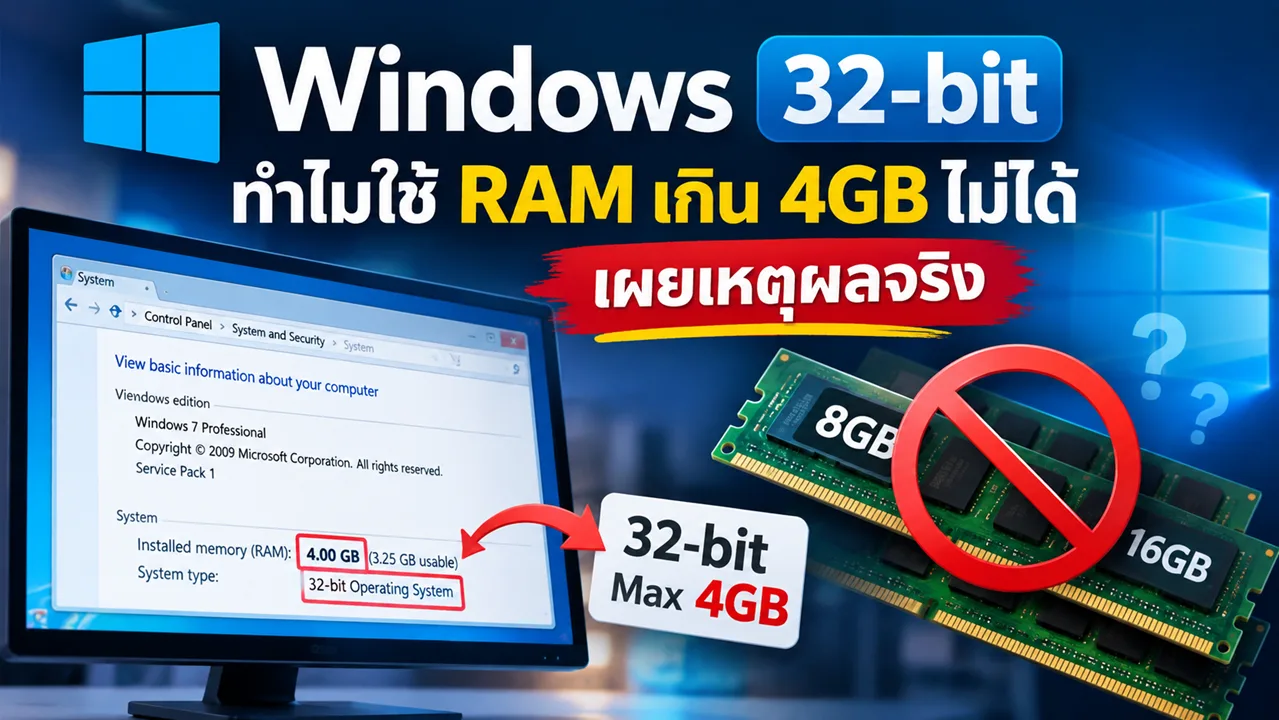
Windows 32-bit เผยเบื้องหลังวิศวกรรม เหตุผลที่แท้จริงของการจำกัด RAM ไว้ที่ 4GB

Windows 32-bit เผยเบื้องหลังวิศวกรรม เหตุผลที่แท้จริงของการจำกัด RAM ไว้ที่ 4GB

  • September 17, 2026
AMD Radeon Windows 11 พบปัญหา Driver Crash และจอค้างหลังติดตั้งอัปเดตเดือนกันยายน

AMD Radeon Windows 11 พบปัญหา Driver Crash และจอค้างหลังติดตั้งอัปเดตเดือนกันยายน

  • September 15, 2026
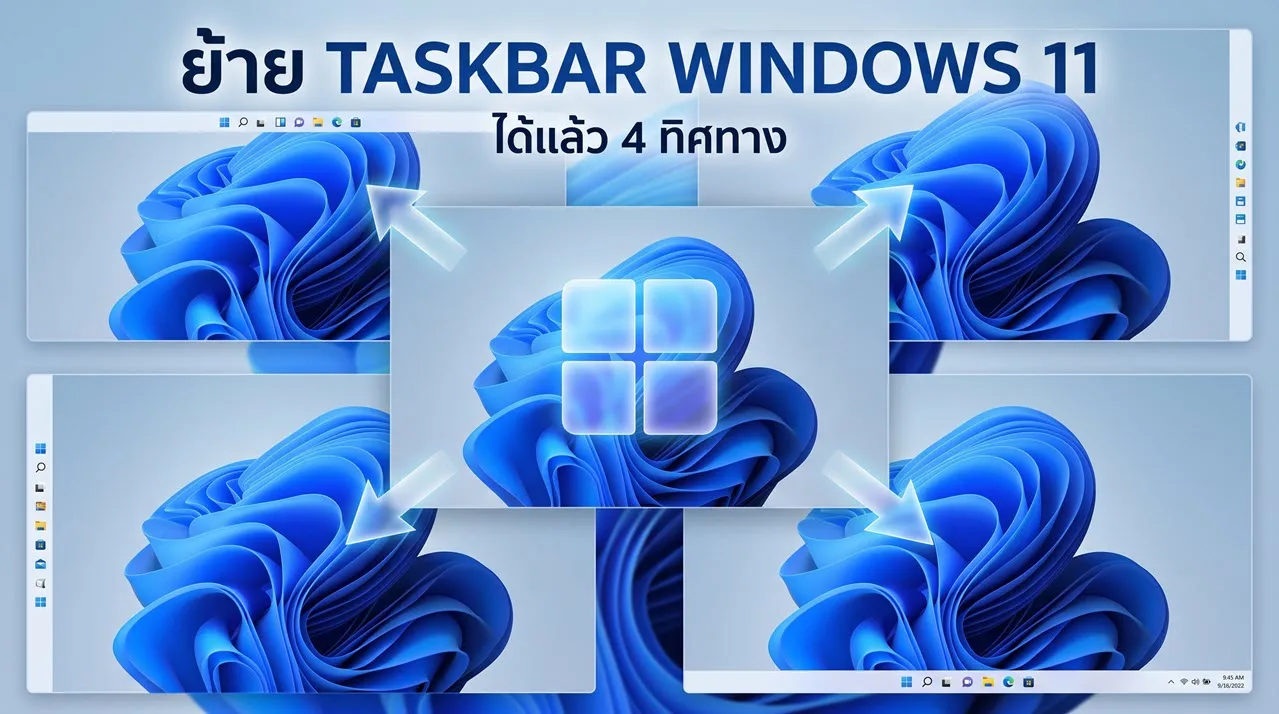
ย้าย Taskbar Windows 11 ได้แล้ว 4 ทิศทาง พร้อมวิธีตั้งค่า

ย้าย Taskbar Windows 11 ได้แล้ว 4 ทิศทาง พร้อมวิธีตั้งค่า

  • September 15, 2026
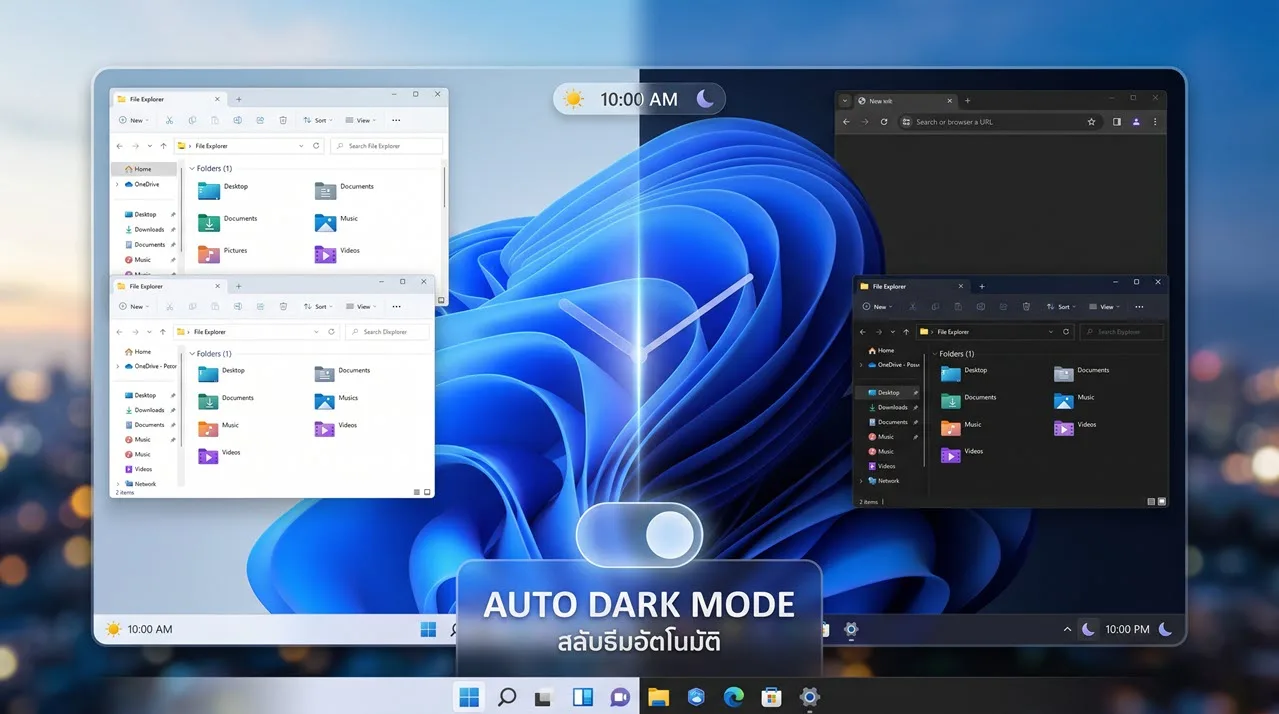
Auto Dark Mode Windows 11 จ่อเพิ่มระบบสลับธีมอัตโนมัติ ยกระดับการใช้งานบนพีซี

Auto Dark Mode Windows 11 จ่อเพิ่มระบบสลับธีมอัตโนมัติ ยกระดับการใช้งานบนพีซี

  • September 10, 2026
วิธีเปิด Vertical Tabs บน Chrome จัดการหน้าต่างเป็นระเบียบ เพิ่มพื้นที่การใช้งาน

วิธีเปิด Vertical Tabs บน Chrome จัดการหน้าต่างเป็นระเบียบ เพิ่มพื้นที่การใช้งาน

  • September 6, 2026

Join 23,000 subscribers

Stay in the loop with everything you need to know.

Free Delivery

24/7 amazing services

Buyers Protection

Safe secure shopping

24/7 Support

Support around clock

Online Payment

Fast secure payments

Daily Deals

Daily book savings

Have a question? Call us 24/7!

+(66) – 85 870 7205

Facebook X-twitter-square Instagram Pinterest Medium-m

Contact Info

15/18 Soi Saibury 27, Saibury Rd, Boyang Sub-district, Songkhla District, Songkhla, 90000, Thailand

Monday – Saturday: 9:00-23:00
Sunday: 11:00 – 23:00

support@varietypc.net

Recommended

รับทำเว็บไซต์
ซ่อมคอมออนไลน์.com
ซ่อมคอมสงขลา.com
สอน WordPress
สบู่ล้างหน้าว่านหางจรเข้
สติกเกอร์ไลน์น่ารัก
เว็บเติมเกม
เนื้อวากิว A5

Useful Links

Refund policy
Terms & conditions
Store pickup
Careers
Locations
Help center

© Copyright VarietyPC.net 2026.

Notifications